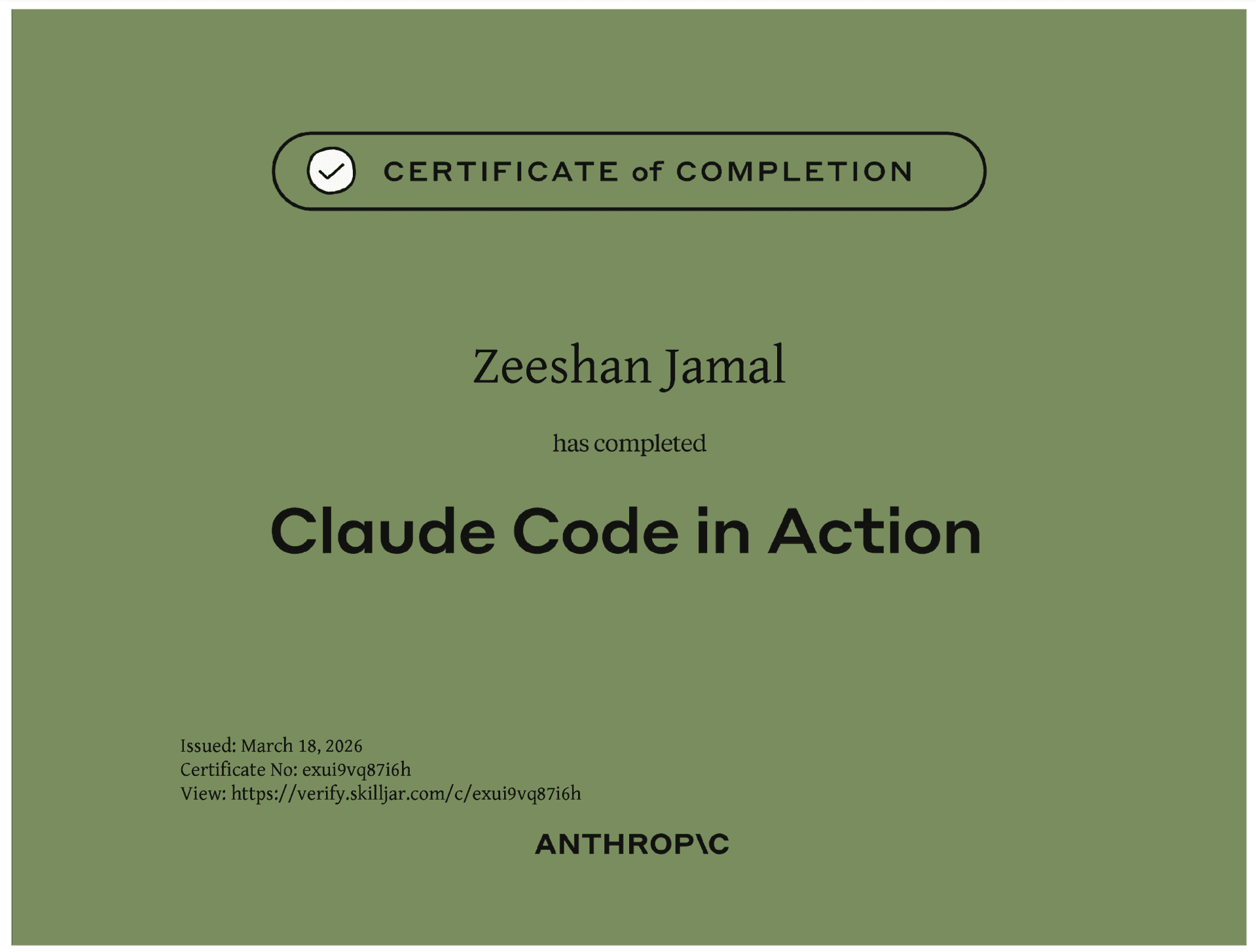
LearningClaude Code in Action

Claude Code in Action

Completed Anthropic's official course on agentic coding with Claude Code. These are my personal notes, slides, and takeaways.

Certified · Anthropic · 2026

Key Concepts

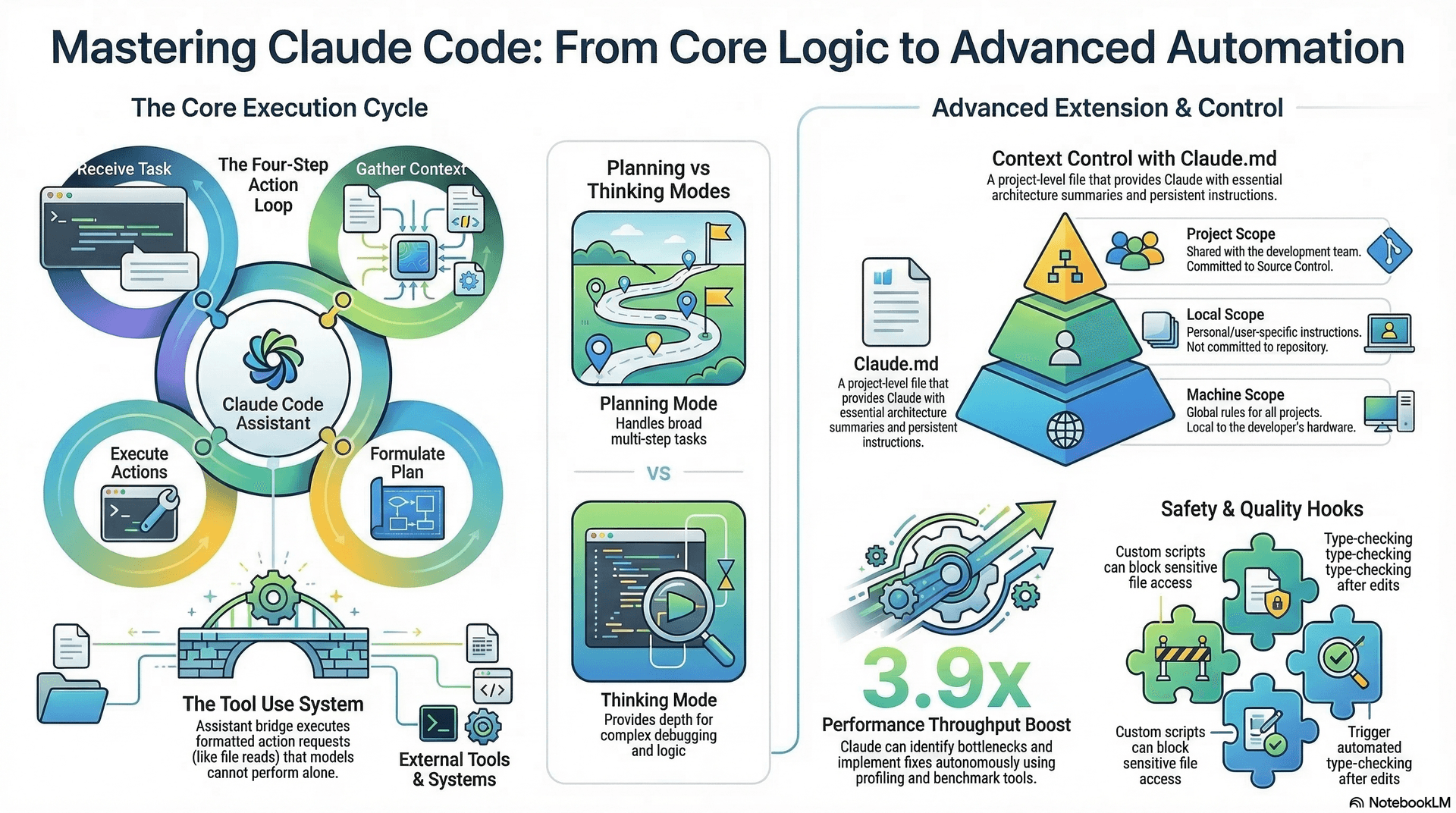
Tool Use System

How Claude escapes the text barrier to read files, run commands and interact with external systems.

Context Management

CLAUDE.md hierarchy — project, local, and machine level context for persistent instructions.

Plan Mode vs Think Mode

Plan mode for breadth across multi-step tasks. Think mode (ultra think) for deep logic and debugging.

Hooks

Pre and post tool-call scripts that block, inspect, or auto-correct Claude's actions programmatically.

MCP Servers

Extend Claude's reach to browsers, APIs, and external systems via the Model Context Protocol.

GitHub Actions

Run Claude as a CI reviewer inside GitHub workflows. Auto-review PRs, detect PII, assign tasks via @Claude.

What is a Coding Assistant?

Coding Assistant = tool that uses language models to write code and complete development tasks

Core Process:

  1. Receives task (e.g., fix bug from error message)
  2. Language model gathers context (reads files, understands codebase)
  3. Formulates plan to solve issue
  4. Takes action (updates files, runs tests)

Key Limitation: Language models only process text input/output - cannot directly read files, run commands, or interact with external systems.

Tool Use System = method enabling language models to perform actions:

  • -Assistant appends instructions to user request
  • -Instructions specify formatted responses for actions (e.g., "read file: filename")
  • -Language model responds with formatted action request
  • -Assistant executes actual action (reads file, runs command)
  • -Results sent back to language model for final response

Claude Models Advantage:

  • -Superior tool use capabilities vs other language models
  • -Better at understanding tool functions and combining them for complex tasks
  • -Claude Code is extensible - easy to add new tools
  • -Better security through direct code search vs indexing that sends codebase to external servers

Essential Points:

  • -All language models require tool use for non-text generation tasks
  • -Tool use quality directly impacts coding assistant effectiveness
  • -Claude's strength in tool use makes it adaptable to development changes
Claude Code in Action

Claude Code = AI assistant with tool-based capabilities for code tasks

Default tools = file reading/writing, command execution, basic development operations

Performance optimization demo: Claude analyzed Chalk JavaScript library (5th most downloaded JS package, 429M weekly downloads). Used benchmarks, profiling tools, created todo lists, identified bottlenecks, implemented fixes. Result = 3.9x throughput improvement.

Data analysis demo: Claude performed churn analysis on video streaming platform CSV data using Jupyter notebooks. Executed code cells iteratively, viewed results, customized successive analyses based on findings.

Tool extensibility: Claude Code accepts new tool sets. Example used Playwright MCP server for browser automation. Claude opened browser, took screenshots, updated UI styling, iterated on design improvements.

GitHub integration: Claude Code runs in GitHub Actions, triggered by pull requests/issues. Gets GitHub-specific tools (comments, commits, PR creation).

Infrastructure review example: Terraform-defined AWS infrastructure with DynamoDB table and S3 bucket shared with external partner. Developer added user email to Lambda function output. Claude Code automatically detected PII exposure risk in pull request review by analyzing infrastructure flow and identifying external data sharing.

Key principle: Claude Code = flexible assistant that grows with team needs through tool expansion rather than fixed functionality.

Adding Context

Context management = critical for Claude Code effectiveness. Too much irrelevant info decreases performance.

/init command = analyzes entire codebase on first run, creates Claude.md file with project summary/architecture/key files. File contents included in every request.

Three Claude.md file types:

  • -Project level = shared with team, committed to source control
  • -Local level = personal instructions, not committed
  • -Machine level = global instructions for all projects

Memory mode (# symbol) = edit Claude.md files intelligently with natural language requests

@ symbol = mention specific files to include in requests, provides targeted context instead of letting Claude search

Best practice = reference critical files (like database schemas) in Claude.md so they're always available as context

Goal = provide just enough relevant information for Claude to complete tasks effectively

Making Changes

Claude Code Change Management:

Screenshot integration = Control-V (not Command-V on macOS) pastes screenshots to help Claude understand specific UI elements to modify

Performance boosting modes:

  • -Plan Mode = Shift + Tab twice, makes Claude research more files and create detailed implementation plans before executing
  • -Thinking Mode = triggered by phrases like "Ultra think", gives Claude extended reasoning budget for complex logic

Planning vs Thinking usage:

  • -Planning = handles breadth, useful for multi-step tasks requiring wide codebase understanding
  • -Thinking = handles depth, useful for tricky logic or debugging specific issues
  • -Can be combined for complex tasks
  • -Both consume additional tokens (cost consideration)

Git integration = Claude Code can stage/commit changes and write descriptive commit messages

Key workflow: Screenshot problematic area → paste with Control-V → describe desired change → optionally enable Plan/Thinking modes for complex tasks → review and accept implementation

Controlling Context

Context Control Techniques:

Escape = Stops Claude mid-response to redirect conversation flow. Press once to interrupt current output.

Escape + Memory = Powerful error prevention. Stop Claude, add memory about repeated mistakes using # shortcut to prevent future occurrences.

Double Escape = Conversation rewind. Shows all previous messages, allows jumping back to earlier point while maintaining relevant context and skipping irrelevant debugging/back-and-forth.

Compact Command = Summarizes entire conversation history while preserving Claude's learned knowledge about current task. Use when Claude has gained expertise but conversation has accumulated clutter.

Clear Command = Deletes entire conversation history for fresh start. Use when switching to completely unrelated tasks.

Key Benefits: Maintains focus, reduces distracting context, preserves relevant knowledge, prevents repeated errors. Most effective for long conversations and task transitions.

Custom Commands

Custom Commands = user-defined automation commands in Claude Code accessed via forward slash

Location = .Claude/commands/ folder in project directory

File naming = filename becomes command name (audit.md creates /audit command)

Activation = restart Claude Code after creating command files

Command structure = markdown file containing instructions for Claude to execute

Arguments = use $arguments placeholder in command text to accept runtime parameters

Argument types = any string (file paths, descriptive text, etc.)

Use cases = automating repetitive tasks like dependency auditing, test generation, vulnerability fixes

Execution = /commandname in Claude Code interface, optionally followed by argument string

Extending Claude Code with MCP Servers

MCP servers = external tools that extend Claude Code capabilities, run locally or remotely.

Playwright MCP server = popular server enabling Claude to control browsers for web automation.

Installation: Terminal command claude mcp add [name] [start-command] adds MCP server to Claude Code.

Permission management: Initial tool usage requires approval. Auto-approve by adding "MCP__[servername]" to settings.local.json allow array.

Practical example: Claude used Playwright to navigate localhost:3000, generate UI component, analyze styling quality, then automatically update generation prompts based on visual feedback.

Results: Automated prompt refinement produced significantly better component styling, demonstrating MCP servers unlock sophisticated development workflows.

Key benefit: MCP servers enable Claude to perform complex multi-step tasks involving external systems, expanding beyond code editing to full development automation.

Github Integration

Claude Code GitHub Integration = official integration allowing Claude to run inside GitHub actions

Setup Process:

  • -Run "/install GitHub app" command
  • -Install Claude Code app on GitHub
  • -Add API key
  • -Auto-generated pull request adds two GitHub actions

Default Actions:

  1. Mention support = @Claude in issues/PRs to assign tasks
  2. PR review = automatic code review on new pull requests

Customization:

  • -Actions are customizable via config files in .github/workflows directory
  • -Custom instructions = direct context/directions passed to Claude
  • -MCP server integration = allows Claude to access external tools (like Playwright for browser automation)

Permission Requirements:

  • -Must explicitly list all permissions for Claude Code in actions
  • -MCP server tools require individual permission listing (no shortcuts)

Example Use Case:

  • -Integrated Playwright MCP server for browser testing
  • -Development server setup before Claude runs
  • -Claude can visit app in browser, test functionality, create checklists
  • -Provides automated testing and issue verification

Key Features = mention-based task assignment, automated PR reviews, customizable workflows, MCP server integration for extended functionality

Introducing Hooks

Hooks = commands that run before/after Claude executes tools

Pre-tool use hooks = run before tool execution, can inspect and block tool operations, send error messages to Claude

Post-tool use hooks = run after tool execution, perform follow-up operations, provide feedback to Claude

Configuration = added to Claude settings file (global/project/personal) via manual editing or /hooks command

Hook structure = two sections (pre-tool use, post-tool use), each with matcher (specifies which tools to target) and commands to execute

Example uses = auto-format files after creation, run tests after edits, block file access, code quality checks, type checking

Hook commands = receive tool call details, can modify Claude's workflow through blocking or feedback mechanisms

Defining Hooks

Hooks Overview

Hooks = mechanisms to intercept and control tool calls before/after execution

Hook Types

Pre-tool use hook = executes before tool call, can block execution

Post-tool use hook = executes after tool call, cannot block execution

Hook Implementation Process

  1. Choose hook type (pre vs post)
  2. Identify target tool names to monitor
  3. Write command to receive tool call data via stdin as JSON
  4. Parse JSON containing tool_name and input parameters
  5. Exit with appropriate code to signal intent

Exit Codes

Exit 0 = allow tool call to proceed

Exit 2 = block tool call (pre-tool use only)

Standard error output = feedback message sent to Claude when blocking

Tool Call Data Structure

JSON object containing:

  • -tool_name (e.g., "read", "grep")
  • -input parameters (e.g., file_path)

Common Use Case
Blocking file access by monitoring "read" and "grep" tools that can access file contents

Tool Discovery
Ask Claude directly for list of available tool names rather than memorizing them

Implementing a Hook

Custom Hook Implementation

Hook purpose = prevent Claude from reading .env file contents

Configuration Setup

  • -Location = .claude/settings.local.json
  • -Hook type = pre-tool use hook (blocks before execution)
  • -Matcher = "read|grep" (pipe symbol separates tool names)
  • -Command = "node ./hooks/read_hook.js"

Implementation Details

  • -Hook receives JSON object via stdin containing: session ID, tool name, tool input, file path
  • -Logic: if file path includes ".env" → exit with code 2 + log error to stderr
  • -Error output goes to stderr for Claude feedback
  • -Exit code 2 = blocked operation

Key Requirements

  • -Must restart Claude after hook changes
  • -Console.error() sends feedback to Claude via stderr
  • -Hook works for both read and grep tools
  • -File path checking: tool_input.path with fallback handling

Testing Results

  • -Successfully blocks .env file access
  • -Claude recognizes prevention by read hook
  • -Works for both read and grep operations

Useful Hooks!

Useful Hooks for Claude Code Projects

Problem: Claude Code often misses type errors and creates duplicate code, especially in larger projects.

Hook 1: TypeScript Type Checker Hook

  • -Purpose: Catch type errors immediately after file edits
  • -Implementation: Run tsc --no-emit after TypeScript file changes via post-tool-use hook
  • -Process: Detects type errors → feeds errors back to Claude → Claude fixes call sites automatically
  • -Benefits: Prevents broken function calls when signatures change
  • -Adaptable: Works for any typed language with type checker, or use tests for untyped languages

Hook 2: Duplicate Code Prevention Hook

  • -Problem: Claude creates new queries/functions instead of reusing existing ones, especially in complex tasks
  • -Solution: Launch separate Claude instance to review changes in specific directories (e.g., queries folder)
  • -Process:
    1. Detect edits to watched directory
    2. Launch new Claude instance via TypeScript SDK
    3. Compare new code against existing code
    4. If duplicate found, exit with code 2 + feedback
    5. Original Claude receives feedback and reuses existing code
  • -Trade-offs: Extra time/cost vs cleaner codebase
  • -Recommendation: Only watch critical directories to minimize overhead

Key Takeaway: Hooks = automated feedback loops that catch common Claude Code weaknesses (type errors, code duplication) by running additional checks and feeding results back to Claude for self-correction.

The Claude Code SDK

Claude Code SDK = programmatic interface for Claude Code with CLI, TypeScript, and Python libraries. Contains same tools as terminal version.

Primary use case = integration into larger pipelines/workflows to add intelligence to existing processes.

Default permissions = read-only (files, directories, grep operations). Write permissions require manual configuration via options.allowTools array or .Claude directory settings.

SDK execution shows raw conversation between local Claude Code and language model, with final response as last message.

Key implementation pattern = add write permissions by specifying tools like "edit" in options.allowTools when making query calls.

Best suited for = helper commands, scripts, and hooks within existing projects rather than standalone usage.

Slides & Infographics

Certificate

Links & Resources